🔊 How to Read a PDF Out Loud on Any Device (Windows, Mac, or Mobile)
Reading long PDFs can be tiring — especially if you spend your day switching between screens. Whether you’re studying, reviewing reports, or catching up on research, sometimes it’s easier to listen instead of read.
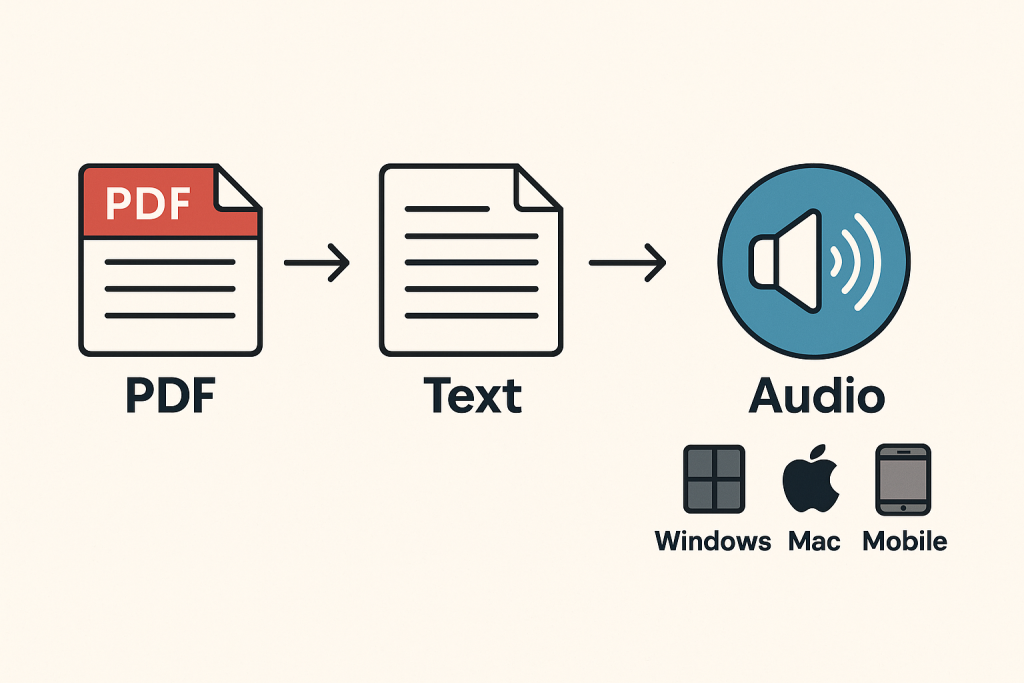
With DocAI Toolbox, you can turn any PDF into a realistic audio narration in just a few steps. This simple guide shows you how to use the built-in PDF to Text and Text to Speech features to make your documents talk — on Windows, Mac, or mobile devices.
🧩 What You’ll Need
You don’t need any special software or technical background. All you need is:
- A Google account
- Access to DocAI Toolbox (works directly inside Google Docs & Slides)
- A PDF file you want to listen to
That’s it — everything runs from your browser. No installations, no setup headaches.
🪄 Step 1: Open DocAI Toolbox in Google Docs
- Go to DocAI Toolbox and click “Install Add-on.”
- Open a Google Doc and navigate to:
Extensions → DocAI Toolbox → Open Sidebar - The sidebar will appear on the right with all the AI features:
PDF to Text, Text to Speech, Translation, Image Generator, and more.
DocAI works entirely inside Google Docs, keeping your workflow fast and simple.
📄 Step 2: Convert PDF to Text
Before you can read a PDF aloud, you’ll first convert it into editable text using DocAI’s PDF to Text feature.
- In the sidebar, click “PDF to Text.”
- Upload your PDF file (from your computer or Google Drive).
- Wait a few seconds for DocAI to process it.
Once done, the text from your PDF appears directly in your document — ready for editing or narration.
If you’d like a full walkthrough, check out the detailed guide here:
👉 How to Convert PDF to Text File (Step-by-Step)
DocAI’s extractor even works with scanned PDFs and image-based content, thanks to its built-in OCR technology.
🗣️ Step 3: Turn Text into Speech
Now it’s time to make your text talk.
- Highlight any part of the extracted text.
- From the sidebar, select “Text to Speech.”
- Choose your preferred settings:
- Voice – e.g., English (US) Female, Spanish Male, French Neutral
- Speed – Slow, Normal, or Fast
- Format – Play directly or download as MP3
Click Generate Audio, and within seconds, you’ll hear your document come to life.
You can play the audio instantly or download it for offline use — perfect for commuting, multitasking, or studying on the go.
⚙️ Step 4: Customize the Voice & Reading Style
DocAI gives you full control over how your document sounds:
- 🎚️ Speed Control: Slow it down for detailed review or speed it up for quick listening.
- 🗣️ SSML Features (Pro & Business): Add pauses, emphasis, and tone variations for natural delivery.
- 🌍 Multilingual Voices: Choose from 70+ languages and 200+ premium AI voices.
You can create your own “narration style” — perfect for audio summaries, e-learning materials, or YouTube scripts.
📱 Step 5: Listen on Any Device
Once your audio is ready, it’s easy to play it anywhere:
🖥️ On Windows or Mac
- Play directly in Google Docs or download the MP3.
- Use media players like VLC or QuickTime for offline listening.
- You can also upload your file to Google Drive or Dropbox for quick streaming.
📱 On Mobile (Android & iPhone)
- Open Google Docs and access DocAI Toolbox directly.
- Highlight text and generate speech the same way.
- You can save the audio to your device or listen hands-free through Bluetooth while driving or walking.
Your PDF becomes your own personal audiobook — accessible from any device, anytime.
💡 Step 6: Combine With Other DocAI Features
The beauty of DocAI Toolbox is that it’s more than just a reader. You can:
- Translate your extracted text into another language before generating audio.
- Use Text to Image to visualize key sections.
- Automate your summaries for faster comprehension.
For instance, teachers can translate course PDFs into different languages and then generate voiceovers in those same languages — all from one sidebar.
🧠 Why This Works Better Than Traditional PDF Readers
Most built-in “read aloud” options (like Adobe Reader’s) sound robotic and lack flexibility.
DocAI Toolbox solves this by giving you:
- Natural AI voices powered by Google Cloud and OpenAI
- Customizable voice speed, tone, and language
- High-quality MP3 export for playback anywhere
- Integration directly in Google Workspace
It’s an all-in-one AI assistant for reading, translating, and narrating your content — whether it’s a medical paper, legal document, or personal project.
🎯 Who Can Benefit
- Students – Listen to study materials or eBooks while commuting
- Professionals – Review PDFs hands-free during travel
- Researchers – Turn technical reports into digestible audio
- Teachers – Create spoken lessons for students
- Accessibility Users – Convert any text into clear, natural speech
If you consume large amounts of written content, this workflow can save hours and reduce screen fatigue.
🔗 Start Reading Your PDFs Out Loud Today
Ready to turn your PDFs into audio?
You can get started right now with DocAI Toolbox — free to install and use with your Google account.
👉 Try it here: https://docaitoolbox.com/
Upload your file, convert it to text, and let DocAI read it aloud in the language and voice you love.
From technical manuals to novels, your documents are now ready to speak to you — anywhere, anytime.