🎧 How to Get the Most Out of TTSReader (Speed, Voice, and Language Tips)
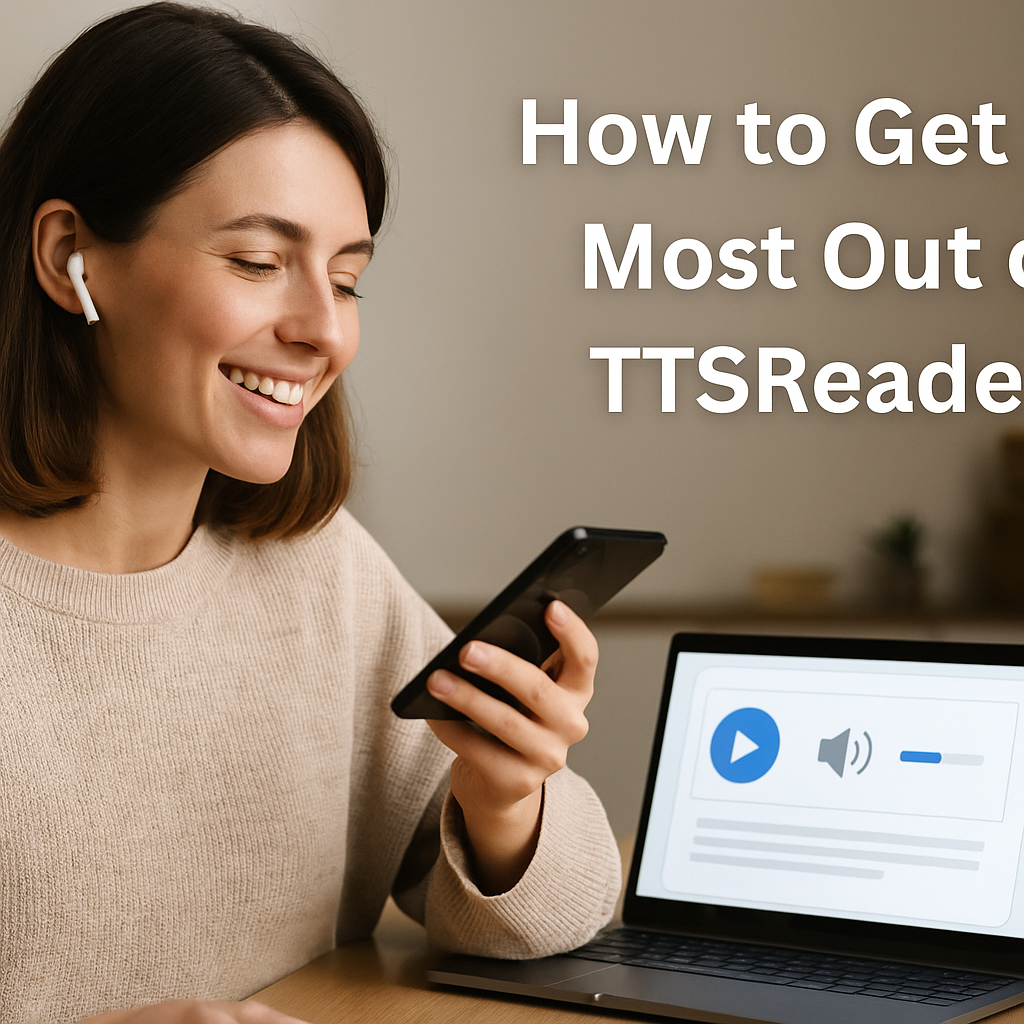
If you’ve ever wanted to listen to your notes, articles, or eBooks instead of reading them, TTSReader is one of the easiest free text-to-speech (TTS) tools you can use. It’s web-based, lightweight, and doesn’t require sign-up or installation. In just a few clicks, you can paste text, pick a voice, and start listening — whether you’re multitasking, learning a new language, or creating voiceovers for your projects.
But to get the best results, you need to know a few insider tricks. Let’s go over how to fine-tune speed, voice, and language so you can make TTSReader sound natural and efficient.
🕹️ 1. Adjust the Reading Speed for Better Flow
By default, TTSReader reads at a moderate pace — good for short texts, but maybe too slow for long articles or too fast for studying.
- To change it, click the “Speed” slider at the bottom of the screen and experiment with different levels.
- For learning or reviewing, try 0.8x to 1.0x speed for clarity.
- For audiobook-style listening, 1.2x–1.4x often sounds more natural.
- For voiceovers or YouTube scripts, test different rates until the speech matches your video pacing.
A small speed change can make a huge difference in comprehension — especially when switching between languages.
🗣️ 2. Choose the Right Voice Style
TTSReader offers both male and female voices in multiple accents.
To explore them, open the “Voice” dropdown menu and test the available options for your browser (they may vary based on your operating system).
For example:
- English (US) Female – smooth and friendly for podcasts or explainer videos.
- English (UK) Male – formal tone for professional or educational projects.
- Spanish or French Voices – great for multilingual learning or dubbing.
If you want even more realism or SSML (pause, tone, and emphasis control), you can try DocAI Toolbox, which integrates Google Cloud and OpenAI voices directly inside Google Docs — perfect for creating longer, studio-quality narrations.
🌍 3. Use Multiple Languages for Learning or Localization
One underrated feature of TTSReader is its multilingual capability. You can paste text in over 20 languages, and the system automatically detects and reads it aloud correctly.
Tips:
- For language learners, slow down the speed to follow pronunciation.
- Mix English and target language passages to build listening comprehension.
- Save each audio segment as an MP3 file (available in the desktop version) to replay later.
If you need more advanced language coverage (like Japanese, Korean, or Arabic), tools like TTSFree or NaturalReader can complement TTSReader well.
⚡ 4. Bonus: Use Browser Extensions or Mobile Mode
TTSReader works beautifully in Chrome or Edge. You can bookmark it or install its Chrome extension to read web pages aloud directly — great for hands-free reading while working.
On mobile browsers, it automatically adapts to smaller screens, so you can listen to content while on the go.
🎯 Final Thoughts
TTSReader is simple, reliable, and free — but with the right tweaks, it becomes a powerful personal reading assistant.
By adjusting speed, voice, and language, you can transform plain text into clear, natural speech that fits your style and workflow.
Whether you’re using it for study, accessibility, or content creation, TTSReader proves that you don’t need expensive software to sound professional.
And if you ever outgrow its limits, you can extend your toolkit with DocAI Toolbox or ttsMP3 for even more advanced voice control — all still free or low-cost.